
D365 F&O: Managing Unified Environment Maintenance Settings with the PAC CLI
Overview
Maintenance cadence and days can currently be configured from the Power Platform Admin Center for D365 Finance and Operations Unified Production Environments (UPEs), but what about Unified Sandbox Environments (USEs) and Unified Developer Environments (UDEs)? When deployed these environments do not come with any maintenance settings, and there is no form available to configure them in the admin center.
By default your UDEs and USEs will be updated with the latest service, platform, and quality updates automatically, which, depending on the activities of your project or organisation, may not be the best option. You wouldn’t, for example, want a Finance and Operations service update to be applied midway through a controlled UAT cycle.
Power Platform Admin functionality is being released under the API-first mantra, which is useful for admins who, as most admins do, like to automate. API-first makes these functions quickly available to Azure DevOps, Power Automate, and AI Agents such as Copilot, allowing admins to integrate them directly into their automated processes.
The Power Platform CLI (PAC) is the tool we can use to update maintenance settings on UPEs, USEs and UDEs, without the need to use the admin center. For the purpose of this article, I will be installing the PAC CLI locally, and running commands to query and update the environment via a PowerShell terminal.
Prerequisites
- A D365 unified developer, sandbox or production environment
-
The installed Power Platform CLI.
My preferred terminal is PowerShell, and the CLI can be installed using the following command:
dotnet tool install --global Microsoft.PowerApps.CLI.ToolIf the command isn’t recognised, you probably don’t have the .NET SDK installed. Install it by running:
winget install Microsoft.DotNet.SDK.10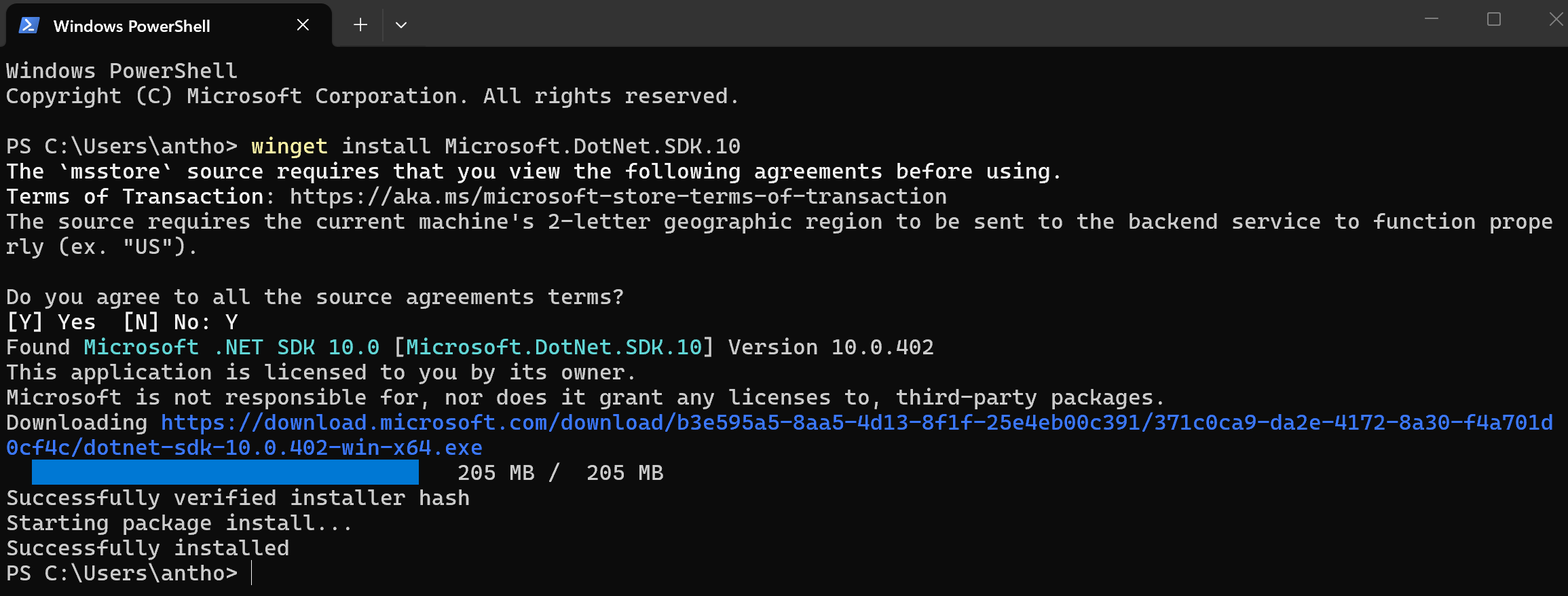
Steps
Authenticate
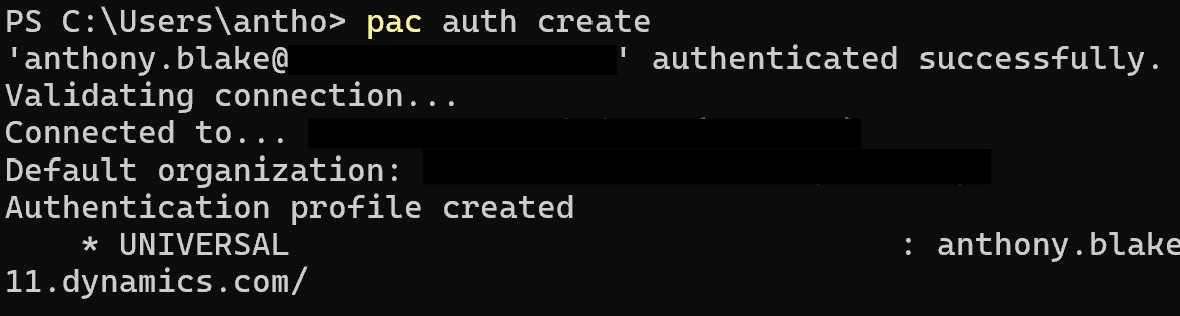
Authentication profiles are stored, so if you have an active profile, it can be selected. If not, a new one can be added. The commands are below.
Display a list of existing authentication profiles:
pac auth list

Select a profile from the list (this selects the profile with index 1):
pac auth select --index 1
Create a new authentication profile:
pac auth create
Get maintenance settings
Next run commands to review the existing maintenance settings, and update them. For this you will need the environment ID. You can get this either by running a PAC CLI command to list environments, or you can get it from the admin center environment page. As I am already in the CLI and this is a PAC CLI article, I used the command:
pac env list
From the results, look for the environment name you want to update, and copy the environment ID column.
Next, run to get the current maintenance settings:
pac dynamics get-fin-ops-maintenance-settings --environment put_your_environment_ID_GUID_here
For this example, I am going to update the release cadence to be every other release, and the release days to be Saturday and Sunday only. This is the command:
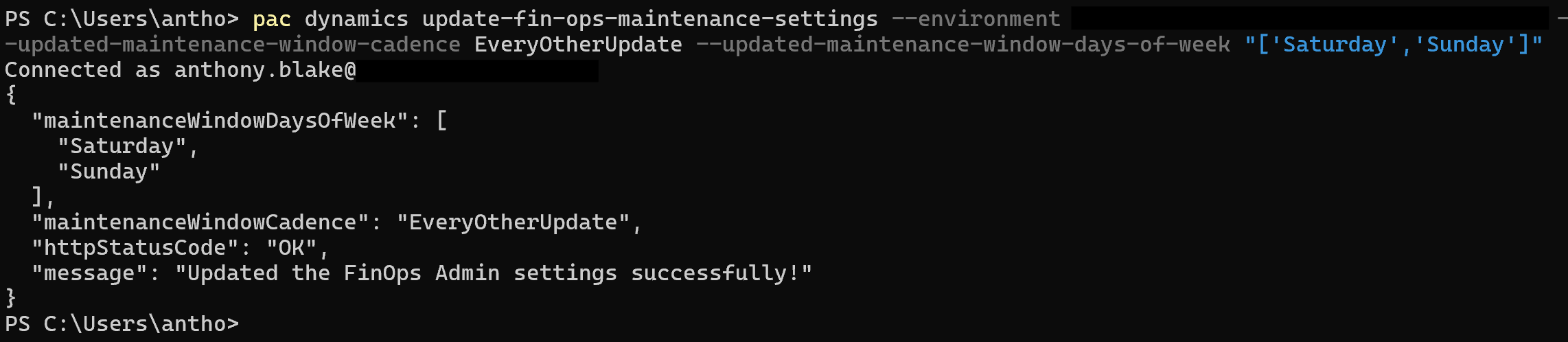
pac dynamics update-fin-ops-maintenance-settings --environment put_your_environment_ID_GUID_here --updated-maintenance-window-cadence EveryOtherUpdate --updated-maintenance-window-days-of-week "['Saturday','Sunday']"
The options for cadence are EveryUpdate or EveryOtherUpdate. The days of the week are the full names, and need to be formatted as a json array.
If successful, PowerShell will display your updated maintenance settings:
Done. Your USE or UDE can now be updated in line with your project and ALM process, and you have also had a preview of the power and convenience of the PAC CLI. These APIs are also available as connectors in Copilot Studio, so there is huge potential for agentic automation, for not just maintenance settings, but for all of your environment admin scenarios.