
D365 F&O: Apply a Service Update to a Unified Environment
Overview
This article documents the steps to take to update the version of a D365 F&O environment which was deployed via the Power Platform Admin Center.
Prerequisites
- A D365 F&O unified environment provisioned via the Power Platform Admin Center.
Steps
Browse to https://admin.powerplatform.microsoft.com/
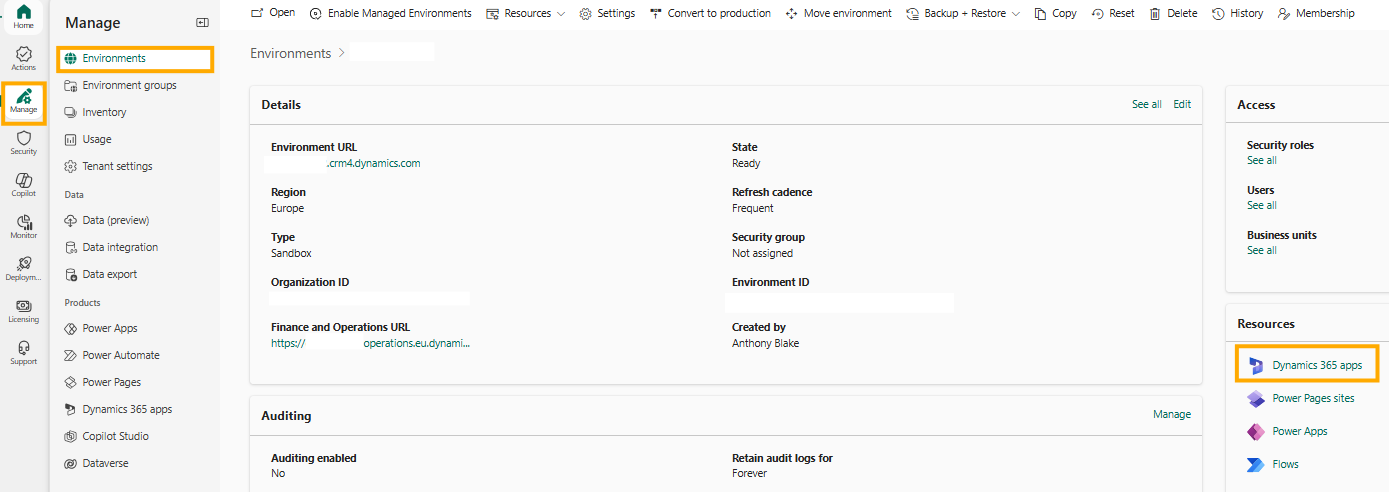
From the menu select Manage -> Environments, find the environment to update and click it to be taken to the environment details page.
From here, click Dynamics 365 apps from the Resources section.
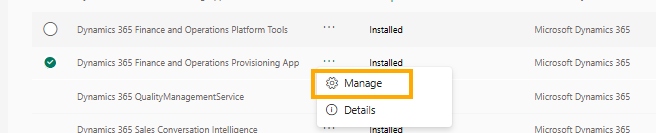
From the Dynamics 365 apps list, find the app named Dynamics 365 Finance and Operations Provisioning App. Click the ellipses menu, and select Manage.
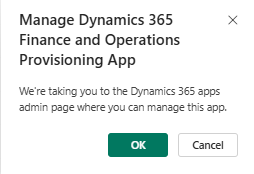
Clicking Manage should give the following warning, click OK to continue to the Provisioning App.
Click the dropdown under Select version of the product, and the available versions of Finance and Operations will be displayed. The environment I updated is configured for Early Release, which is why there is a preview version available for deployment:
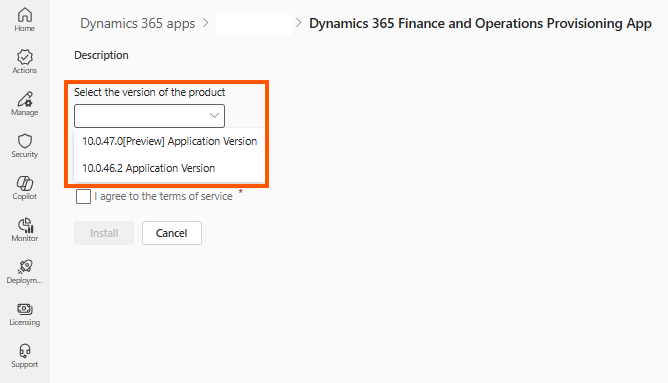
Check the box to agree to the terms of service, and click the Install button.
Back in the Dynamics 365 Apps screen, the Dynamics 365 Finance and Operations Provisioning App will display a status of Installing…

To verify the correct version is installing, click on the ellipses menu again, and click the Details option.

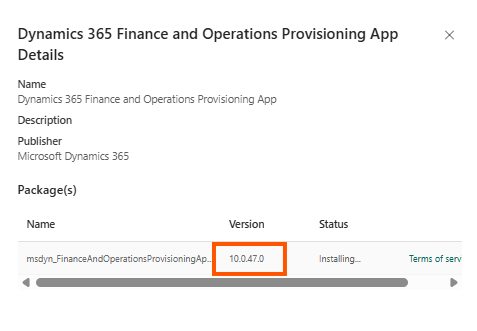
The window which opens to the right of the admin center screen will also show a status of Installing…, and show which Finance and Operations version is currently being installed.
Similar to LCS, usually within a couple of hours, you should see that the update is complete.

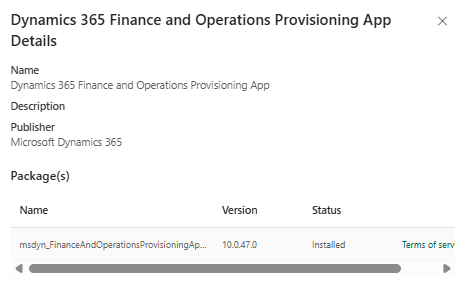
Which is also reflected in the details screen, with updated Version number, which here was 10.0.47.
Enjoy trying out the latest features on your newly updated PPAC-managed D365 ERP environment!