
D365 F&O: Deploy a Preview Version to a Unified Environment
Overview
This article documents the steps to take to deploy a preview version of D365 F&O using the Power Platform Admin Center.
Deploying preview versions to D365 F&O was straightforward in LCS. Import the preview to the LCS asset library, and subsequently apply the package to any of the deployed environments. When using the new admin experience in the Power Platform admin center to manage D365 F&O environments, the process is a little different, as the environment needs to have been deployed as an Early Release cycle environment, by setting the “Get new features early” flag on creation. Once deployed as early release, the preview version becomes available to the Provisioning App, and can be applied.
References
These steps are my own, although they were mostly derived from these websites:
Unified Developer Experience documentation
Provision a new ERP based Power Platform environment
Prerequisites
- Enough available F&O and Dataverse Capacity, quoted by the documentation as at least 1GB.
- Permission to create Environments in Power Platform Admin Center.
Steps
Browse to https://admin.powerplatform.microsoft.com/
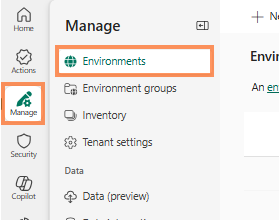
Click the Manage menu, then Environments.
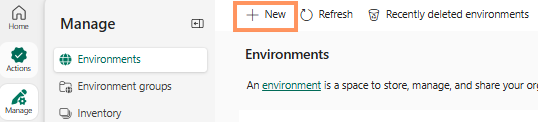
Click +New.
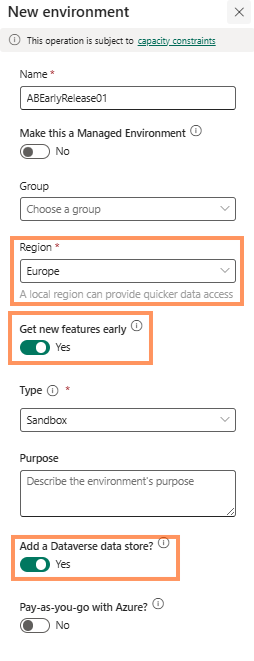
The default Region for my tenant is United Kingdom, and this is important as Early Release cycle environments are not supported, so the option is greyed out.
To deploy an Early Release cycle environment, change the selection to a supported region, for this example I used Europe.
Also set the Get new features early and Add a Dataverse data store toggles:
Click Next.
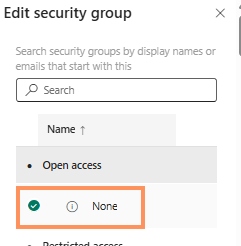
On the next screen, click + Select to select a Security Group, for this example I selected None:
Select an ERP template to deploy, for example Finance, Supply Chain Management, or Project Operations ERP:
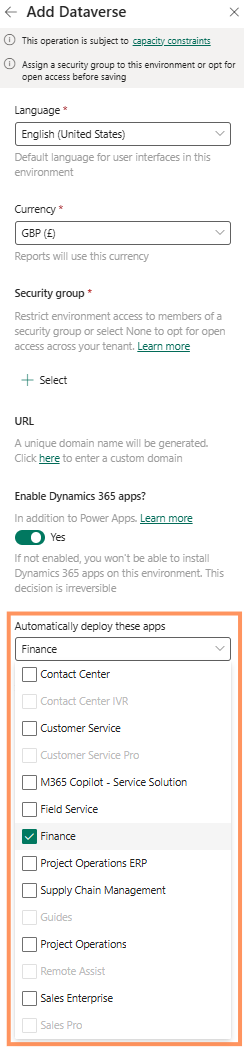
When the environment is provisioned, back in Power Platform Admin Center, from the main menu, change the Region in the top right to be the region hosting your environment, in my example this is Europe.
Browse to Dynamics 365 apps, and find the app named Dynamics 365 Finance and Operations Provisioning App:
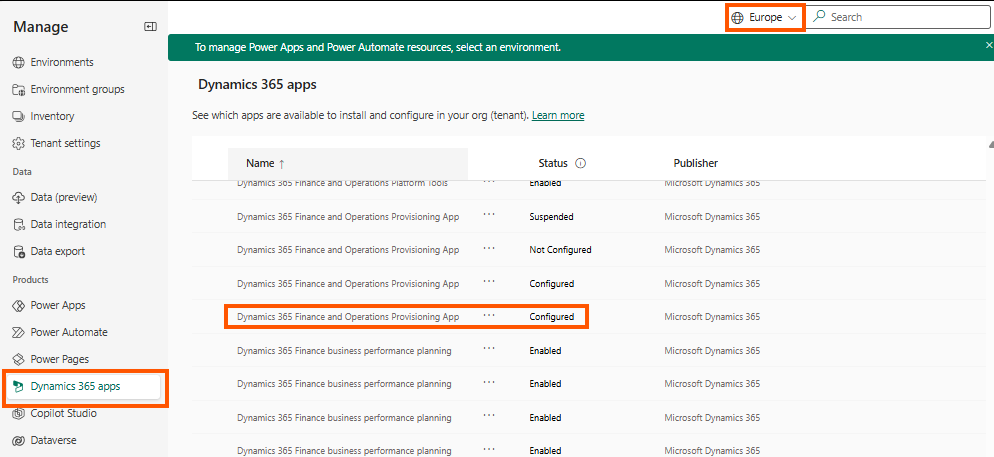
Click the menu button to the right of the app name, and click Manage:
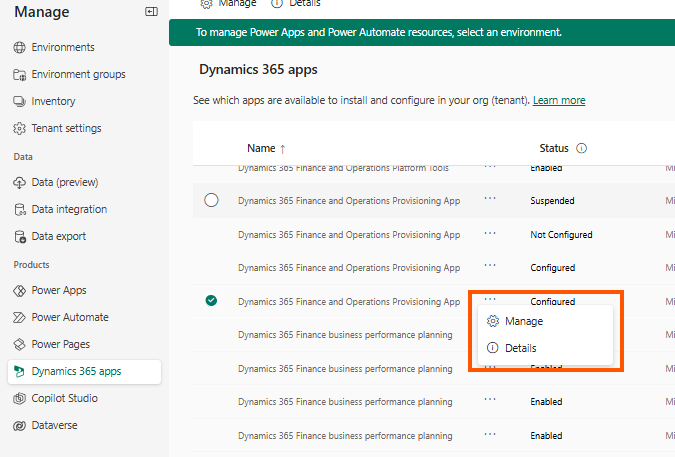
From this app you will need to select the environment to update. Note this will only show environments provisioned in the region selected in the previous steps.
Select the new Early Release cycle environment from the dropdown.
In this example, I have also selected Enable Developer Tools for Finance and Operations, to allow connecting to Visual Studio to deploy code and debug, and Enable Demo Data for Finance and Operations, to populate the environment with Contoso Demo Data.
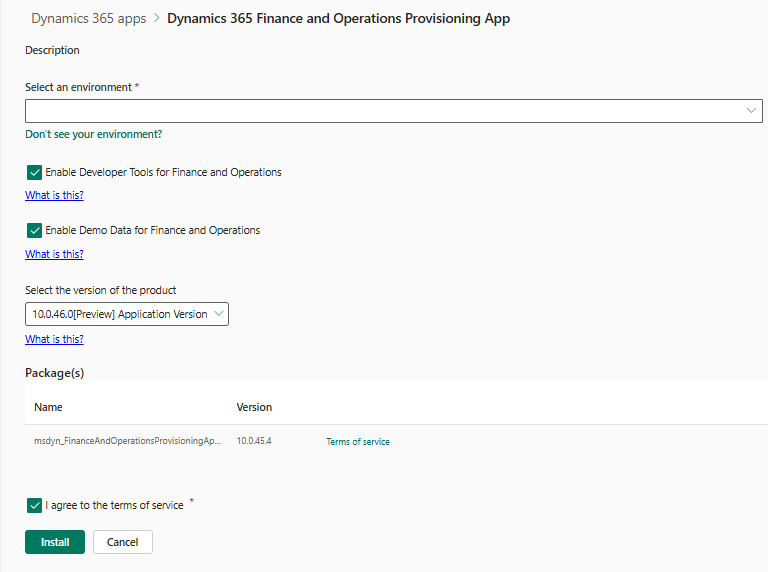
In this example, the environment was provisioned on 10.0.45, and I updated it to the version 10.0.46[Preview], which is only available in the provisioning app because the selected environment is an Early Release cycle environment.
Next, check that the preview version is installing.
From environments, browse back to Dynamics 365 apps, where you will see the status Installing… for the Dynamics 365 Finance and Operations Provisioning App:
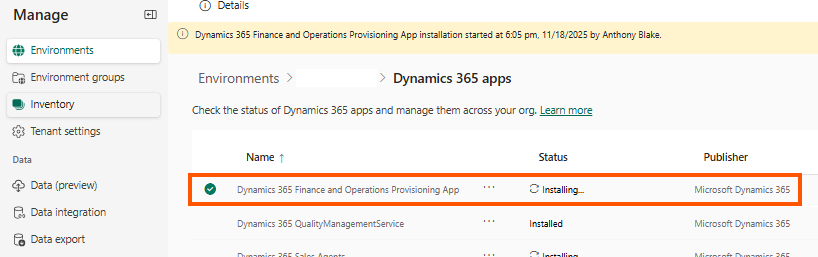
Click the 3 dots menu icon beside the app name again, and click Details.
There you should see that the preview version is installing:
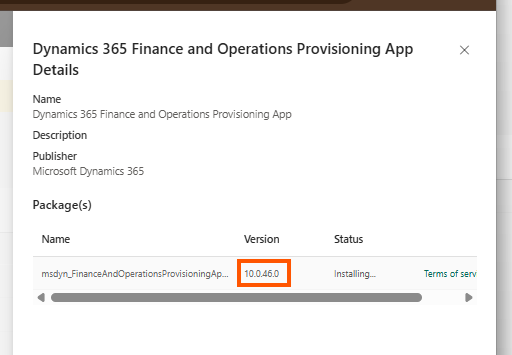
You can also check the packages deployed to this environment, including the 10.0.46 update.
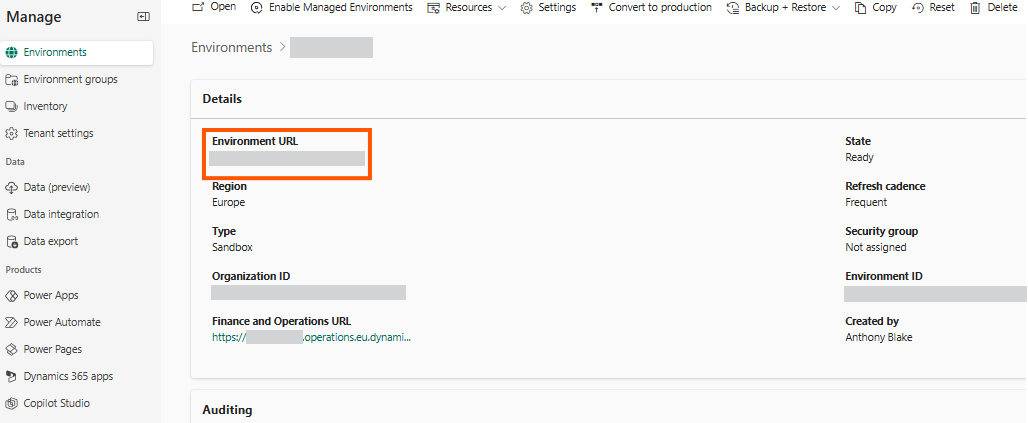
Browse to the Published Apps page at
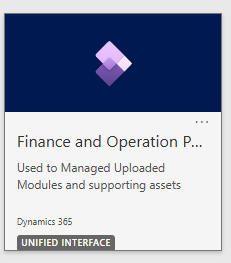
From the Apps dashboard, open the Finance and Operations Packages app:
Under the Operation history tab, there will be an operation named Queue install, representing the 10.0.46 package update:

Once the update completes, you will have a Dynamics 365 Finance and Operations ERP environment deployed on the preview version, which, as an early release environment, will also be eligible for deployment of future previews.
Enjoy trying out preview features on your PPAC-managed D365 ERP environment!